

Table of Contents
ToggleIntroduction
Interactive displays are changing how businesses conduct meetings, present information, collaborate on projects, and communicate with employees and customers. Unlike conventional screens, an interactive display combines visual presentation with touch interaction, digital collaboration, content sharing, and other smart features.
However, choosing the right interactive display requires more than selecting the largest screen available. Businesses need to consider room size, screen resolution, touch capability, connectivity, software compatibility, security, maintenance, and the specific tasks the display will support.
This guide explains the key factors businesses should consider when choosing an interactive display and how to select a solution that delivers practical value over the long term.
What Is an Interactive Display?
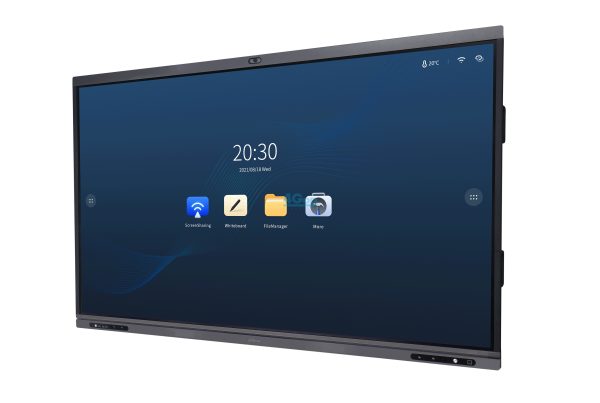
An interactive display is a large digital screen that allows users to interact directly with displayed content, usually through touch. Depending on the model, it can support digital whiteboarding, presentations, video conferencing, wireless content sharing, annotation, and access to business applications.
Unlike a standard commercial display, an interactive display allows users to control or modify content directly on the screen.
How Does an Interactive Display Work?
Most interactive displays combine several technologies in one device:
- A high-resolution display panel
- Touch-sensitive technology
- Built-in speakers
- Connectivity ports such as HDMI, USB and USB-C
- Wireless connectivity
- An operating system or smart platform
- Collaboration and whiteboarding software
- Optional computing modules
For example, during a business meeting, a team could display a presentation, annotate it directly on the screen, open a digital whiteboard, and share the session with remote participants.
This makes an interactive display more than a presentation screen. It becomes a shared workspace for communication and collaboration.
Why Are Businesses Using Interactive Displays?
Businesses are increasingly adopting interactive displays because they can bring several meeting and collaboration functions into one environment. Instead of switching between a projector, laptop, whiteboard and separate video-conferencing equipment, teams can perform many activities from a single interactive screen.
The biggest advantages include improved collaboration, more engaging presentations, easier content sharing and greater flexibility for different types of meeting spaces.
Key Benefits of Interactive Displays
Better collaboration: Teams can write, draw, annotate and edit content together.
More engaging presentations: Presenters can interact directly with charts, documents, websites and other content.
Simpler meetings: A single device can combine display, whiteboarding and collaboration functions.
Flexible use: The same display can support meetings, training sessions, presentations and brainstorming.
Improved hybrid collaboration: Remote participants can follow presentations and contribute to shared digital content.
Reduced equipment dependency: Businesses may not need separate projectors and traditional whiteboards for many meeting environments.
For businesses with multiple meeting rooms, these advantages can become particularly valuable when interactive displays are deployed consistently across different spaces.
Start With the Room and Your Business Use Case
The right interactive display depends heavily on where and how it will be used. Before comparing brands and specifications, define the environment in which the display will operate.
A small meeting room has different requirements from a large boardroom, training centre or executive conference room.
Consider These Questions
Ask the following before making a purchase:
- How many people will normally use the room?
- How far will the furthest participant sit from the screen?
- Will people interact directly with the screen?
- Will the display be used mainly for presentations or collaboration?
- Will remote participants join meetings?
- Will the display need to run applications without a connected laptop?
- Will it be mounted on a wall or placed on a mobile stand?
- Will the display be used for several hours every day?
For example, a company using an interactive display mainly for executive presentations may prioritise image quality, wireless presentation and video conferencing compatibility.
A training centre, on the other hand, may place greater emphasis on touch responsiveness, annotation, durability and software compatibility.
Match the Display to the Space
The room should influence the screen size, brightness, viewing distance and installation method.
A display that looks excellent in a small meeting room may be too small for a large boardroom. Similarly, buying an unnecessarily large screen for a small room can make the installation uncomfortable and inefficient.
Choose the Right Screen Size
Screen size is one of the most visible purchasing decisions, but bigger is not always better. The correct size should provide clear visibility without overwhelming the room.
Common interactive display sizes include:
Screen Size | Typical Business Use |
55-inch | Small meeting rooms and compact spaces |
65-inch | Small to medium meeting rooms |
75-inch | Medium and large meeting rooms |
86-inch | Large conference rooms and training spaces |
98-inch and above | Large presentation and collaboration environments |
These are general guidelines rather than strict rules. The room layout, viewing distance and content being displayed should ultimately determine the appropriate size.
Why Viewing Distance Matters
Text, spreadsheets and detailed presentations need to remain readable from the back of the room.
For example, a display that is adequate for a group sitting close to the screen may become difficult to read when the same number of people are spread across a larger conference room.
Before purchasing, measure the approximate distance between the screen and the furthest seating position.
Consider Resolution, Brightness and Touch Technology
Display specifications directly affect how comfortable and productive the device is to use.
Resolution
4K UHD resolution is common among modern business interactive displays. It provides greater image detail than Full HD and is particularly useful for presentations containing text, diagrams, spreadsheets and detailed visuals.
However, resolution should not be considered in isolation. A high-resolution display cannot compensate for poor viewing distance, unsuitable screen size or inadequate brightness.
Brightness
Brightness affects how clearly content appears under different lighting conditions.
A conference room with large windows and strong natural light may require a brighter display than a darker internal meeting room.
Look for a display that can maintain good visibility without requiring the room to be excessively dark.
Touch Technology
Touch performance is especially important if employees will regularly write or annotate directly on the screen.
Consider:
- Number of simultaneous touch points
- Touch response time
- Stylus support
- Palm rejection
- Writing accuracy
- Ease of cleaning
- Screen durability
A display that supports multiple simultaneous touch points can allow several users to interact with content at the same time, making it more suitable for collaborative workshops and training sessions.
Check Connectivity and Device Compatibility
An interactive display should work smoothly with the devices already used by your organisation.
Before buying, check the available connectivity options and confirm that they support your laptops, conferencing equipment and other devices.
Important Connectivity Options
Look for:
- HDMI
- USB
- USB-C
- DisplayPort
- Ethernet
- Wi-Fi
- Bluetooth
- Audio connections
- Touch USB
- Optional OPS or computing slots
USB-C can be particularly useful because compatible devices can sometimes transmit video, data and power through a single connection.
Wireless connectivity is also important for organisations that want employees to share presentations without repeatedly connecting cables.
Check Compatibility With Your Existing Ecosystem
Businesses using Microsoft Teams, Zoom or other collaboration platforms should verify compatibility before purchasing.
The display may need to work with:
- Microsoft Teams Rooms
- Zoom Rooms
- Google Meet
- Windows computers
- Android devices
- Mac computers
- Wireless presentation platforms
- Existing room-control systems
Compatibility should be confirmed at the product and software level rather than assumed simply because the display has an operating system.
Evaluate Software and Collaboration Features
The software experience can be just as important as the screen itself.
Two interactive displays with similar hardware specifications may provide very different user experiences because of their operating systems, applications and collaboration tools.
Look for Useful Collaboration Features
Depending on your business requirements, useful features may include:
- Digital whiteboarding
- Screen annotation
- Wireless screen sharing
- Cloud storage integration
- Video conferencing support
- File sharing
- Web browsing
- Multi-window functionality
- Split-screen support
- QR-based content sharing
A strong digital whiteboard can be particularly valuable for brainstorming, project planning and training.
For example, a project team could open a shared whiteboard during a planning session, add ideas using touch or a stylus, organise them into categories and save the resulting workspace for later reference.
Built-In Operating Systems
Some interactive displays include Android-based platforms or other smart operating environments.
This can allow users to access applications directly from the display without connecting an external computer.
However, businesses should check the operating system version, supported applications, update policy and security capabilities before making a decision.
Consider Security, Management and Reliability
Business displays are often connected to company networks and may be used to access sensitive documents or online services. Security should therefore be part of the purchasing decision.
A display that offers excellent collaboration features but weak security controls can create unnecessary risk.
Security Features to Consider
Depending on the organisation, look for:
- User authentication
- Device management
- Application controls
- USB security controls
- Network security options
- Automatic file removal
- Firmware and software updates
- Access restrictions
- Remote device management
Centralised management can be especially important for businesses operating several interactive displays across different offices.
Instead of manually configuring every screen, IT administrators may be able to manage settings, updates and applications from a central platform.
Reliability and Warranty
Interactive displays are business equipment, so reliability matters.
Check:
- Warranty period
- Availability of replacement parts
- Local technical support
- Installation support
- Software update policy
- Expected operating hours
- Manufacturer reputation
For organisations in Nigeria, Ghana and other West African markets, local availability of support and replacement components can be particularly important.
A cheaper display may become more expensive in the long term if servicing or replacement parts are difficult to obtain.
Compare Interactive Displays With Other Presentation Options
An interactive display is not always the only suitable solution. Businesses should compare it with conventional commercial displays, projectors and other presentation systems.
Feature | Interactive Display | Standard Display | Projector |
Touch interaction | Yes | Usually no | Usually no |
Digital whiteboarding | Yes | Requires additional software/device | Requires additional equipment |
Image quality | High | High | Depends on projector and environment |
Bright-room performance | Generally strong | Generally strong | Can be affected by ambient light |
Installation | Wall or stand | Wall or stand | Ceiling, wall or portable |
Collaboration | Built-in on many models | Often requires external devices | Usually requires external devices |
Maintenance | Moderate | Moderate | Lamp/filter maintenance on some models |
Portability | Limited | Limited | Some models are portable |
If a business only needs to display presentations, a standard commercial display may be sufficient.
If the organisation needs collaborative touch, digital annotation and interactive workflows, an interactive display can provide considerably more functionality.
Common Mistakes to Avoid When Buying an Interactive Display
Purchasing an interactive display without properly evaluating the business environment can lead to unnecessary costs.
1. Choosing Based Only on Screen Size
A larger screen does not automatically provide a better experience. Screen size must match the room and viewing distance.
2. Focusing Only on Resolution
4K resolution is useful, but it should be considered alongside brightness, touch performance, viewing angle and software capabilities.
3. Ignoring Connectivity
A display may have excellent features but still create problems if it cannot connect easily to the devices your employees already use.
4. Overlooking Software
Hardware specifications do not tell the whole story. Poor software integration can reduce the usefulness of an otherwise excellent display.
5. Forgetting Security
An interactive display connected to a corporate network should be treated as an IT endpoint rather than simply a large screen.
6. Ignoring After-Sales Support
Warranty, installation, maintenance and technical support should be evaluated before purchase.
7. Buying Without a Room Assessment
A quick room assessment can prevent mistakes involving screen size, mounting position, viewing angles and connectivity.
Best Practices for Choosing an Interactive Display
A structured purchasing process can help businesses select the right solution without focusing solely on technical specifications.
1. Define the Main Use Case
Determine whether the display will primarily support:
- Meetings
- Presentations
- Training
- Brainstorming
- Video conferencing
- Digital whiteboarding
- Customer demonstrations
- Education and workshops
2. Assess the Room
Measure the room and determine the seating arrangement and viewing distance.
3. Set a Budget
Consider the complete cost rather than the screen price alone.
The total cost may include:
- Display
- Wall mount or mobile stand
- Installation
- Software
- Computing module
- Video-conferencing equipment
- Network configuration
- Maintenance
4. Shortlist Suitable Models
Compare models based on the features that directly support your use case.
5. Test Before Deployment
If possible, arrange a demonstration. Test touch responsiveness, wireless sharing, video conferencing, writing, sound and compatibility with your existing devices.
6. Plan for Long-Term Management
Consider how the organisation will update, secure, monitor and maintain the display after installation.
This approach makes the purchasing decision more practical and reduces the likelihood of investing in features that employees rarely use.
What Should Businesses Look for in an Interactive Display?
The ideal interactive display should combine appropriate screen size, strong image quality, responsive touch, reliable connectivity, useful collaboration software, security controls and dependable after-sales support.
The most important features can be summarised as follows:
Requirement | What to Look For |
Screen size | Appropriate for room and viewing distance |
Resolution | 4K UHD for detailed business content |
Brightness | Suitable for the room’s lighting |
Touch | Responsive multi-touch capability |
Connectivity | HDMI, USB-C, USB, Wi-Fi and network options |
Collaboration | Whiteboarding, annotation and wireless sharing |
Compatibility | Support for existing meeting platforms and devices |
Security | Device management and access controls |
Reliability | Strong warranty and support |
Management | Centralised administration where required |
The goal is not to find the display with the longest specification sheet. It is to find the one that solves the organisation’s actual collaboration and communication requirements.
Future Trends in Business Interactive Displays
Interactive displays are becoming increasingly connected to wider workplace technology ecosystems.
Future business deployments are likely to place greater emphasis on integrated collaboration, remote management, artificial intelligence and smarter meeting environments.
AI-enabled meeting features may help organisations summarise discussions, organise information and support participants before, during and after meetings.
At the same time, interactive displays are increasingly becoming part of unified meeting-room systems rather than functioning as standalone screens.
This means businesses should consider not only what an interactive display can do today, but also how easily it can fit into their technology environment as workplace requirements evolve.
Conclusion
Choosing the right interactive display requires more than comparing screen sizes and prices. Businesses should begin with their actual use case, assess the meeting environment and then evaluate screen size, resolution, brightness, touch performance, connectivity, software, security and long-term support.
The right interactive display can transform a meeting room into a more collaborative and productive workspace. It can support presentations, digital whiteboarding, training, video conferencing and content sharing from a single environment.
For organisations in Nigeria, Ghana, Ivory Coast and across West Africa, local technical support, warranty coverage, installation and long-term maintenance should also form part of the purchasing decision.
Ultimately, the best interactive display is not necessarily the most expensive or the one with the most features. It is the solution that provides the right combination of functionality, usability, reliability and value for the people and spaces that will use it.
FAQs
An interactive display is a digital screen that allows users to interact with content directly through touch. Business models can support presentations, digital whiteboarding, annotation, wireless content sharing and video conferencing.
The appropriate size depends on the room dimensions, viewing distance and number of participants. Common business sizes include 65, 75 and 86 inches, although smaller and larger options are also available.
4K is not mandatory for every business, but it can provide sharper text, images and presentations. It is particularly useful when the display will show detailed documents, spreadsheets, diagrams or high-resolution media.
In many business environments, yes. An interactive display can provide a bright, high-resolution presentation surface without requiring a projector. It can also add touch and collaboration features that traditional projectors do not normally provide.
Yes. Many interactive displays can support video conferencing either through built-in capabilities or by connecting compatible cameras, microphones, speakers and conferencing systems.